Seedance 1.0 Pro Fast
A low-cost way to test a simple scene. The free option creates a 4-second, 480p text-to-video clip without sound, subject to your allowance and availability.
Open this modelA LITTLE GUIDANCE. MORE CREATIVE CONTROL.
Turn an idea into a short video. Learn where to click, how to switch models, and what to try when a result misses the mark.
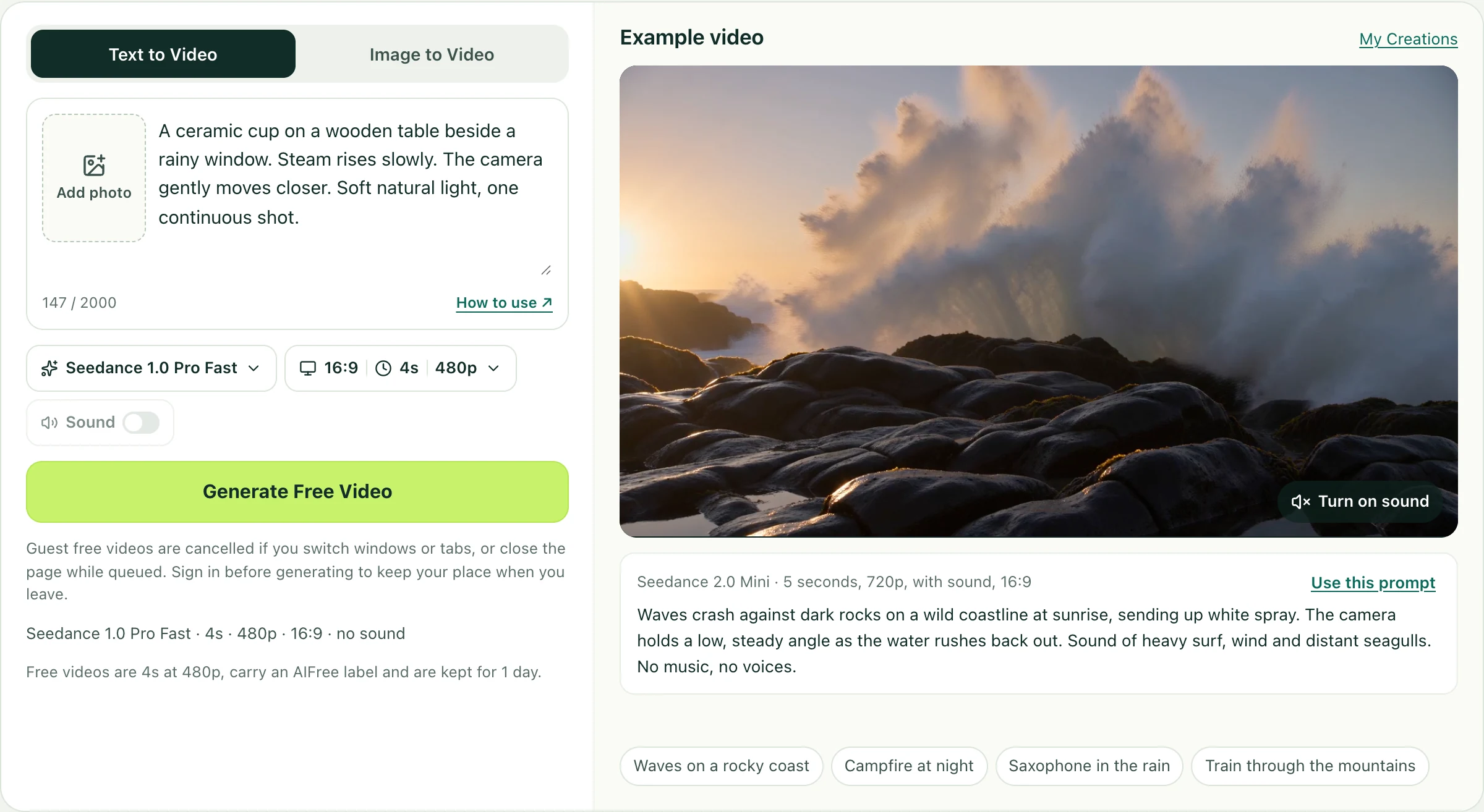
YOUR STARTING POINT
Choose Text to Video and describe what should happen. A useful prompt names the subject, one action, the camera movement and the look you want.
A ceramic cup on a wooden table beside a rainy window. Steam rises slowly. The camera gently moves closer. Soft natural light, one continuous shot.Use this prompt in the editor
Start with one continuous shot. A short clip rarely needs a whole story with several locations or camera cuts.
For MiniMax, the output shape follows your photo. If your saved photo has expired, upload it again.
Open image to video ↗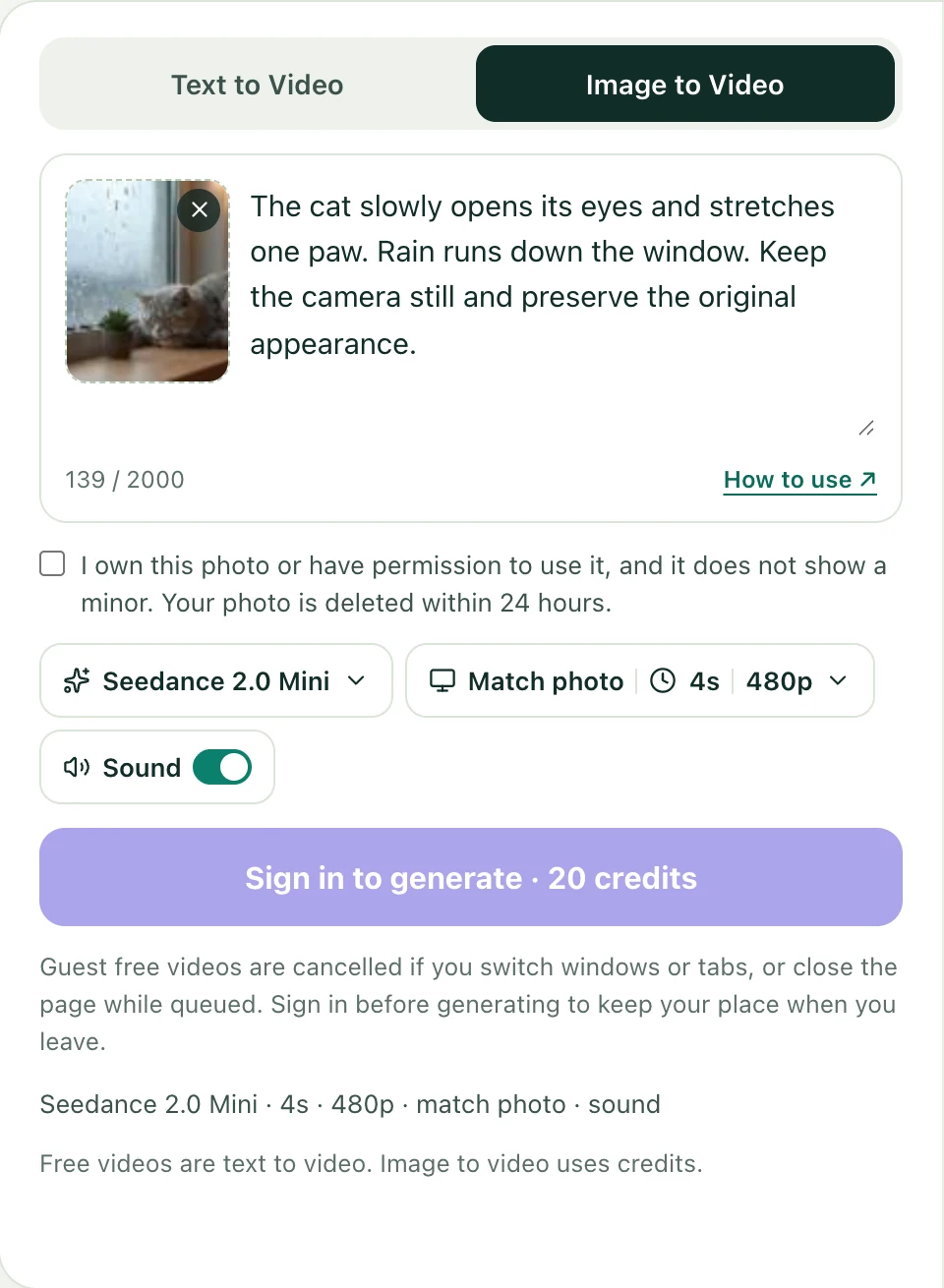
ONE PROMPT. DIFFERENT POSSIBILITIES.
Under the prompt box, click Seedance 1.0 Pro Fast or whichever model name is currently shown. Choose another model from the menu.
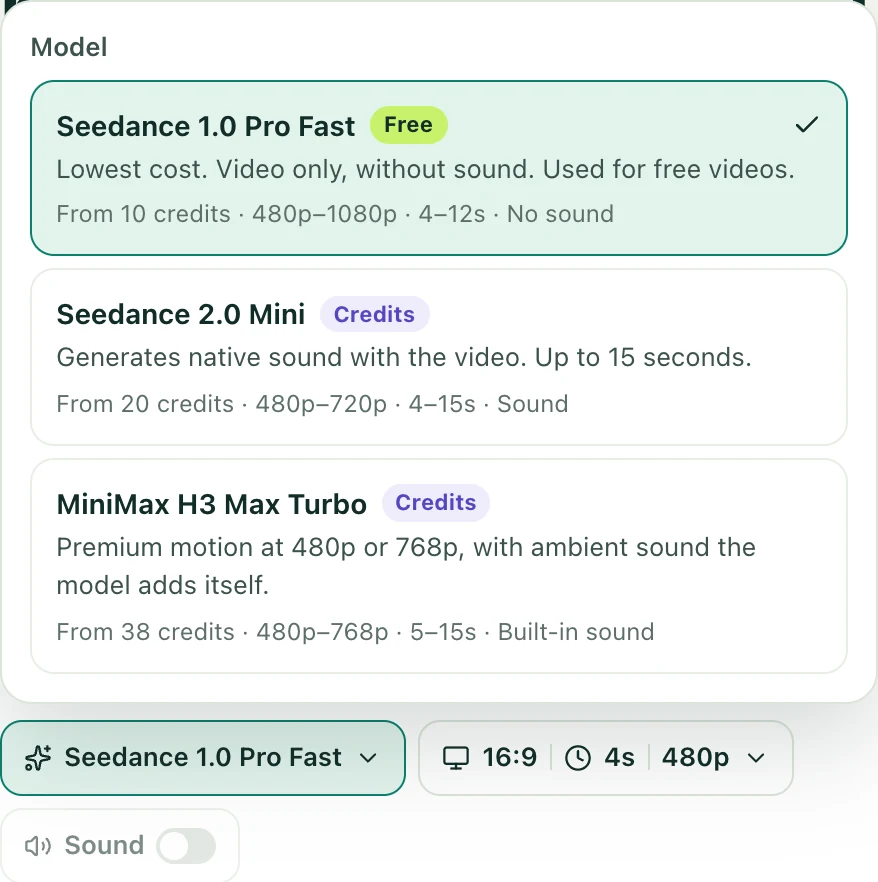
A low-cost way to test a simple scene. The free option creates a 4-second, 480p text-to-video clip without sound, subject to your allowance and availability.
Open this modelTry native sound with your video. Sound is on when you select Mini, and you can turn it off. Paid accounts start with Mini in the general editor unless a model or draft was already selected.
Open this modelAn alternative for action and camera movement. Its ambient sound is built in. Try it when another model does not interpret your scene the way you want.
Open this modelSHAPE THE SHOT
Next to the model name, click the button showing values such as 16:9 · 4s · 480p. It opens aspect ratio, length and resolution.
The example player has its own mute control. Unmuting an example does not turn on sound for your next generation.
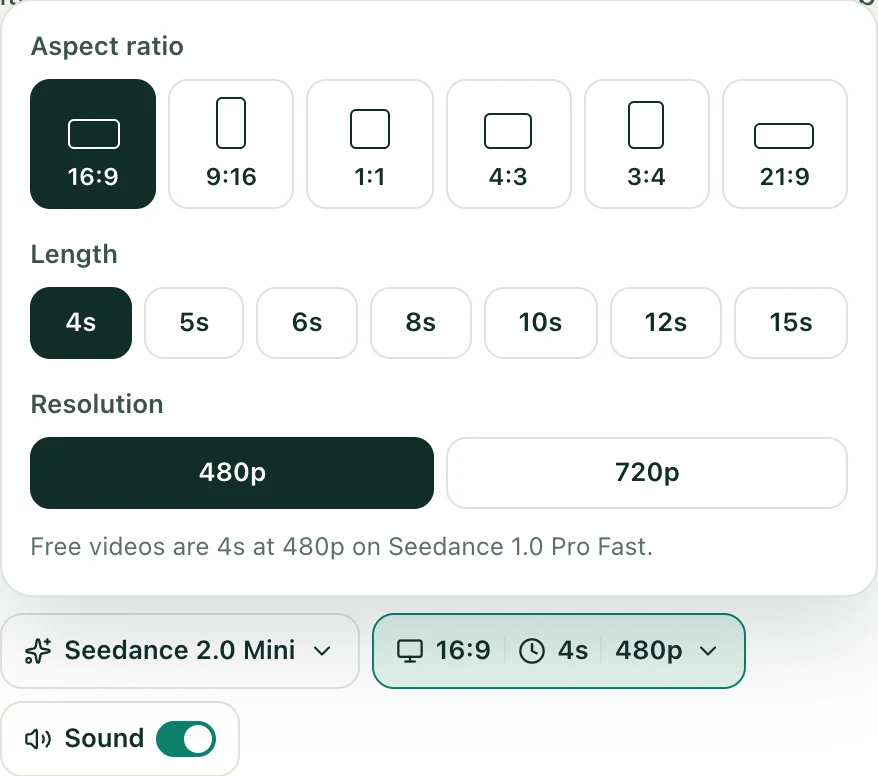
FROM PROMPT TO PREVIEW
It shows free generation, the credit cost, or the sign-in / purchase step needed. Complete the security check if requested.
Your task moves from the queue to generation and saving. Free videos can take longer; credit videos skip the free queue.
When finished, play your video and select Download MP4 below it. You can also find saved videos in My Creations.
Download before expiry: free videos are kept for 1 day, credit-pack videos for 15 days, and credit videos made with an active subscription for 30 days.
MAKE THE NEXT VERSION COUNT
AI video is an interpretation of your prompt. A busy scene, unclear motion, an unsuitable image or the model’s strengths can all affect the result. Change one thing at a time so you can see what helps.
After a Fast video finishes, you can select Mini or MiniMax beside the result. Your prompt is copied into the editor, and the finished video stays available to download. Review the new settings and credit cost before generating again.
See how to switch models ↑Several actions, fast movement or a complicated camera move can be hard to follow.
Try this: Keep one subject and one action. Try a steady camera and a shorter clip, then compare another model with the same prompt.
Vague instructions or competing details leave more room for the model to interpret.
Try this: Name the subject, describe what changes, then add one camera movement. Remove details that contradict each other.
A blurry, crowded or tightly cropped source gives the model less useful detail.
Try this: Use a clear image with room around the subject. Describe gentle movement and ask to preserve its appearance and the background.
Wan 2.2 and Seedance 1.0 Pro Fast generate silent video. The player may also be muted.
Try this: Choose Seedance 2.0 Mini and check Sound is on, or use MiniMax with built-in sound. Unmute the video player to listen.
Low resolution limits detail; malformed objects or motion need a different approach.
Try this: Once the scene works, make a new version at a supported higher resolution. For warped faces, hands or objects, simplify the scene or try another model first.
Fine lettering, facial detail and consistent anatomy can vary between generations.
Try this: Use fewer subjects, simpler movement and a clear source image where appropriate. Add exact titles or logos later in a video editor.
A new generation can look different even with the same prompt. Changing models or increasing resolution creates a new clip; it does not edit the previous video or guarantee a better result.
YOUR NEXT SHOT
Write one clear scene, choose your model, and review the price.
On the homepage, use the Model dropdown above the Wan prompt. Choosing Seedance or MiniMax opens their editor, where the model button is below the prompt as shown in these screenshots. Review the settings and credit price after switching.
Selecting a model changes your editor settings. It does not generate or charge by itself. The Generate button shows the cost; you still need to confirm generation. Image-to-video, Seedance 2.0 Mini, MiniMax and higher settings use credits.
The model selection applies to your next generation. It creates a new video from the prompt and any selected photo; it does not modify or upscale the existing clip. A different model may suit the scene better, but the result will vary.
Keep the page open while your free video is in the queue. Once model generation starts, it continues in the background. Credit requests skip the free queue and can continue after you leave. In the Seedance editor, signed-in free requests can also continue in the background.
Free videos are kept for 1 day. Credit-pack videos are kept for 15 days, and credit videos generated with an active subscription for 30 days. Download the files you want to keep before they expire.
The editor explains when your free allowance has been used, the daily free pool is full, or free generation is paused. Credit generation is separate. Check the button and message before submitting; typing a prompt alone does not start a task.